Write and review in Docs
Create structured documents, review changes, and share a public or restricted copy.
Create your first document
Docs is the rich-text writing tool in your AppStruct workspace. Start with a blank document, choose a template, or import an existing file.
- Open Docs in the workspace navigation.
- Select New document, or choose a template from the library.
- Give the document a clear title at the top of the editor.
- Write your content, then use headings and lists to organize it.
- Check the save indicator before leaving the page.
You can create another document from File → New document without returning to the library. File → New from template starts a separate document using a template.
Follow the interface
Find your file, write with structure, and keep feedback attached to the right text.
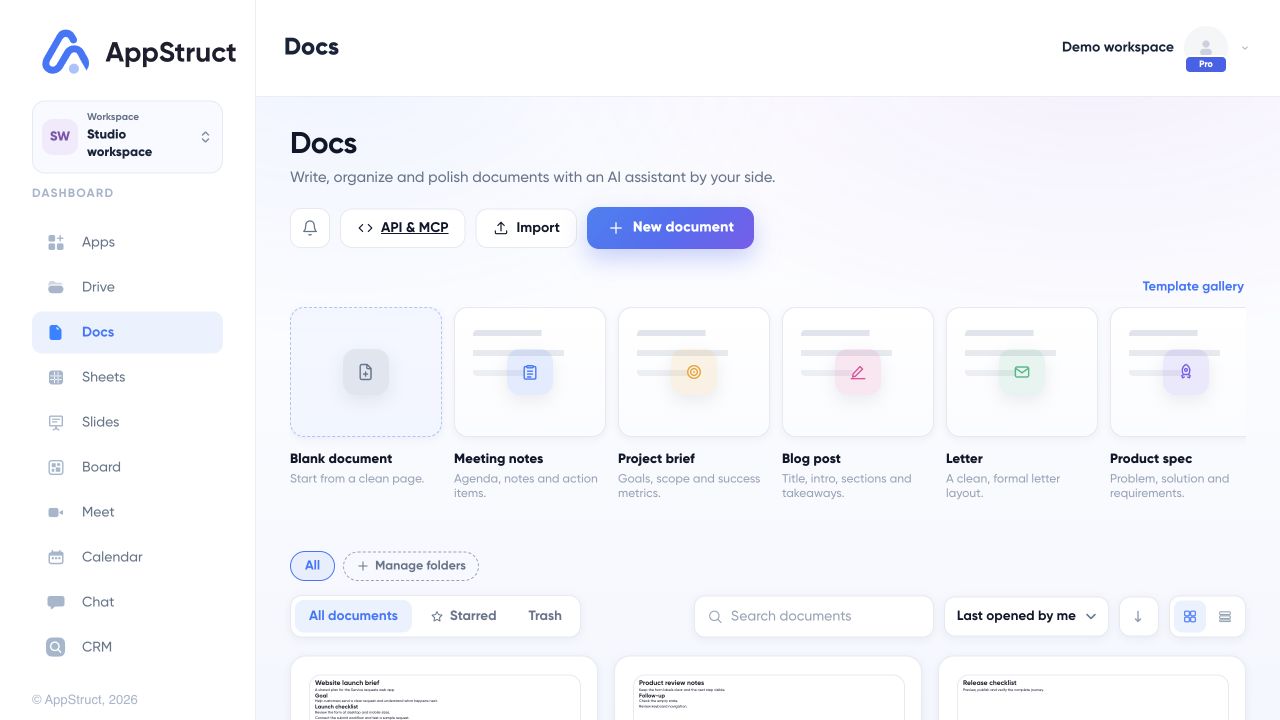
Start in the Docs library. Use New document for a blank file, choose a template, or reopen a document from your library.
Web interface captured on 5 Nov 2026. Workspace names, files, people, and conversations are fictional examples.
Structure and format your content
Use the formatting toolbar for text styles, alignment, lists, colors, and spacing. Headings create a useful outline for longer documents. Add images and tables from Insert, then select an object to reveal the actions that apply to it.
For page-based work, open File → Page setup. Docs includes page layout controls, headers and footers, page numbers, footnotes, equations, and text direction settings. Use the menus rather than searching the toolbar for every feature: File, Edit, View, Insert, Format, Tools, and Help group related actions.
Review with comments and suggestions
Select the relevant text or image before adding a comment so the discussion has a clear anchor. Use Suggesting mode when you want to propose edits for review. Editing changes the content directly; Viewing lets you read without making edits. The available modes follow your access role.
Open File → Version history to inspect earlier versions. A version may be saved on this device or synchronized with your account; the history panel tells you which. Restoring an earlier version changes the current document, so inspect it first.
Import and download
The library's Import button and File → Import… accept Word (.docx), OpenDocument (.odt), Rich Text (.rtf), Markdown, plain text, and HTML files. Review any message about content left out during conversion.
Use File → Download for Word, ODT, RTF, PDF, HTML, EPUB, Markdown, or plain text. Choose a format for its purpose: PDF for a fixed reading copy, Word for further editing elsewhere, or Markdown for lightweight text workflows. Download and print actions may be unavailable when a document's owner restricts them for viewers and commenters.
Share or publish
Share grants an existing AppStruct account Editor, Commenter, or Viewer access. Copying the restricted document link does not grant access by itself.
File → Publish to web… creates a separate read-only copy anyone with its link can read without an account. You can update the public copy, enable automatic republication, or choose Stop publishing. Keep this separate from inviting collaborators.
All changes saved and Offline describe different states. If the editor says work is saved only on this device, keep a downloaded copy or reconnect before changing devices. Resolve Couldn’t save — storage full before closing the tab.