Find and create apps
Find a project in Apps, start a new one, and continue in the visual editor.
Apps is the project library in your workspace. Open it to return to an existing app or start a new one. Choose the intended workspace before working with its projects.
Find an existing app
Use the search field to find a project by name. The sort control orders projects by Newest or Oldest. Open a project card to continue in the visual editor.
A card’s menu contains project actions. Check the project name before duplicating or deleting an app.
Start a new app
- Open Apps from the workspace navigation.
- Choose the new-app control.
- Enter a clear project name and choose Continue.
- Under Choose a template, use Blank App or choose a prepared project template.
- Create the app, then inspect its screens and actions in the editor.
Find a project, name a new app, and open the right project action.
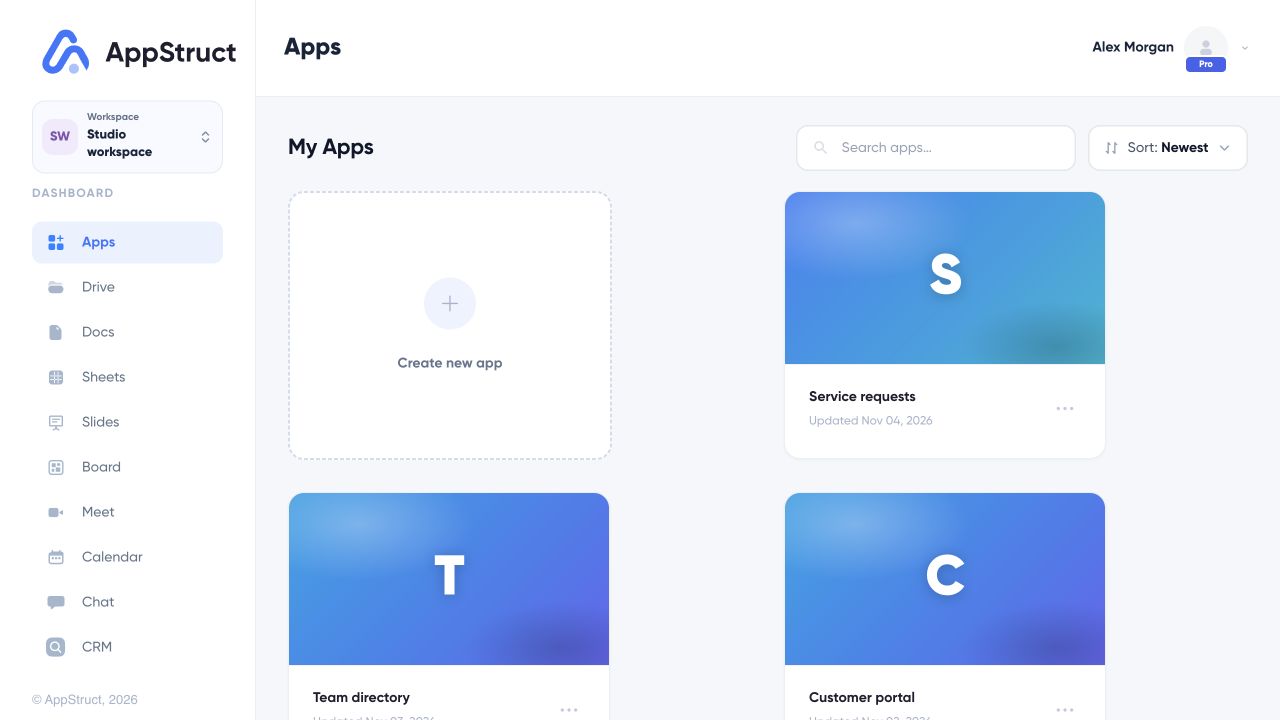
Apps is the project library. This example includes Service requests, the same app used in the editor and workflow guides.
Web interface captured on 5 Nov 2026. Workspace names, files, people, and conversations are fictional examples.
A template supplies a starting structure. Review its data connections and behavior before using it with real users. If a project limit or billing message appears, follow the account information displayed by AppStruct.
Continue building
Use the editor for screens, components, workflows, Preview, and publishing. Select Web App from Publishing when you are ready to build the browser version.