Organize files in Drive
Upload, find, organize, and recover the files behind your work.
Start with a folder
Drive is the file library in your AppStruct workspace. Use it for uploaded files and folders, then use Docs, Sheets, or Slides when you want to edit those kinds of work directly.
- Open Drive in the workspace navigation.
- Choose New → New folder and enter a useful name, such as
Website launch. - Open the folder and use Upload, or drag files into the library.
- Follow the upload tray until the upload finishes. Check the file appears before leaving the page.
The New menu also includes Document, Spreadsheet, and Presentation. These are entry points to the corresponding workspace tools; uploading a file and creating an editable workspace item are different tasks.
Follow the interface
Create a folder, find a file, and inspect the actions for the selected item.
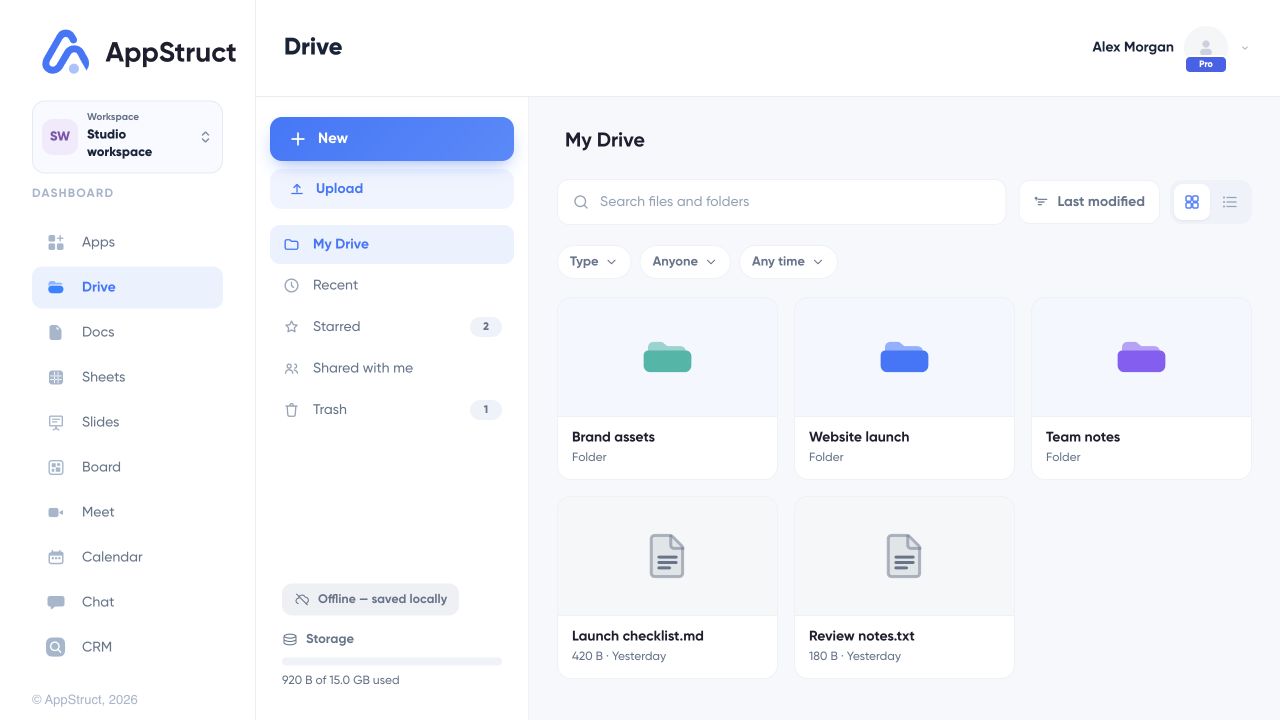
Start in My Drive. The Website launch folder and Launch checklist.md are example files for a small web release.
Web interface captured on 5 Nov 2026. Files, people, connections, appointments, and report data are fictional examples.
Find the right file
Use Search files and folders to narrow the library. Sort by Name, Last modified, or Size, and switch between list and grid views to suit the job. List view is useful when comparing file details; grid view is helpful when recognizing visual files.
| View | Use it when |
|---|---|
| My Drive | You want to browse your folders and files. |
| Recent | You need something you worked with recently. |
| Starred | You want to return to a file you marked as important. |
| Shared with me | You are looking for a shared item. |
| Trash | You need to recover something you removed. |
Select a file to see the available actions, or open its context menu. You can rename it, move it to another folder, make a copy, download it, or move it to Trash. You can also drag items into a folder. Use the details panel when you need more information about a file rather than opening it.
Recover a file or an earlier version
Removing an item from the main library moves it to Trash. Open Trash, select the item, and choose Restore to put it back. Permanently deleting an item or emptying Trash is a separate action.
For a file with stored versions, open Version history, inspect the available versions, and choose the version you want to restore. Keep a downloaded copy when you need an independent record outside AppStruct.
Know where your files are saved
The Drive status describes whether your files have reached your account:
- All changes saved means Drive has synchronized with your account.
- Syncing… means changes are still being sent.
- Offline — saved locally means the server could not be reached; your work is retained on this device for retry.
- Saved on this device means cloud Drive is not available in the current session.
Click the status to retry or refresh. Before changing devices or clearing browser data, wait for All changes saved or download the files you need.
For collaboration on an editable document, spreadsheet, or presentation, use Share inside that tool. Its access controls apply to the editable item.