Workspaces & members
Keep projects and teamwork organized, switch context safely, and manage who belongs to your workspace.
Switch workspaces
Open the workspace switcher in the dashboard navigation. Search by workspace name if your list is long, then select a workspace. Check the displayed name before creating or sharing work.
Changing workspaces changes the context for workspace tools. A workspace is not the same as an app project or a folder in Drive.
Create a workspace
- Open the workspace switcher and choose Create workspace.
- Enter a Workspace name that describes your team or project.
- Confirm with Create workspace and wait for the new workspace to open.
- Open the switcher again and choose Members & access when you are ready to add people.
Follow the workspace controls
Find the current workspace, open its controls, or prepare a separate space for another team.
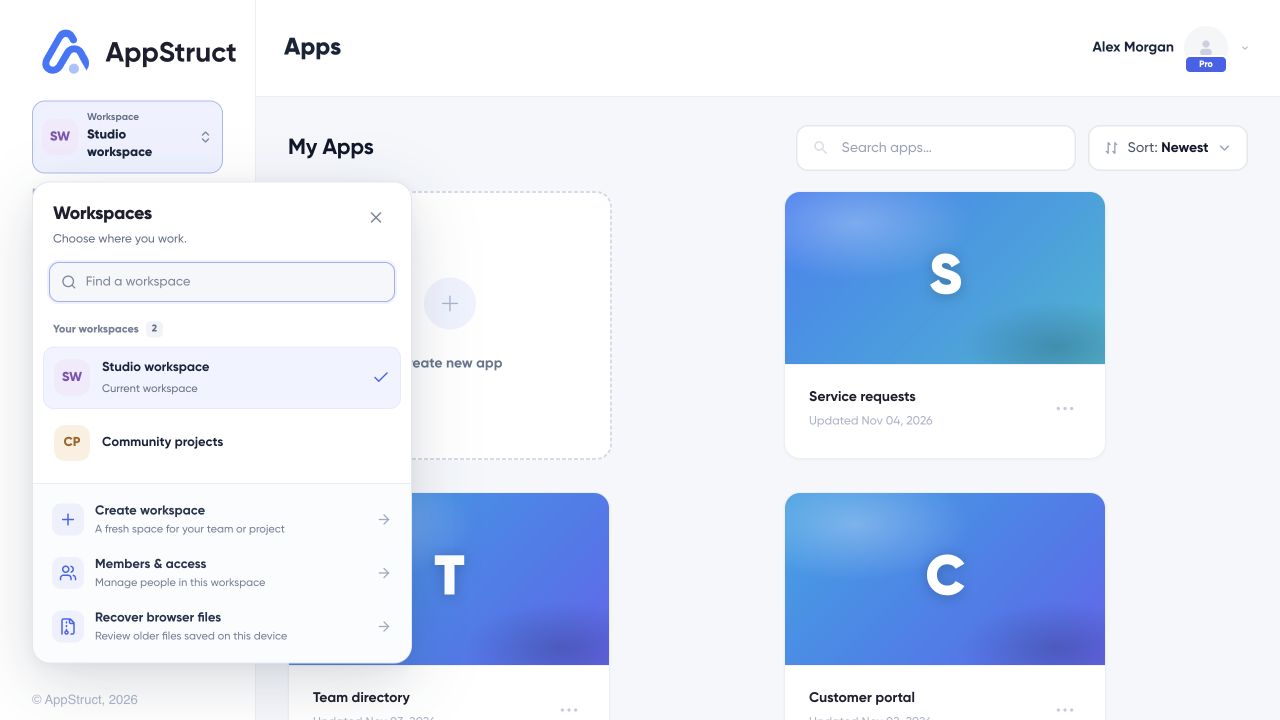
Open the workspace switcher in the dashboard sidebar. Check the current workspace before creating work or managing its members.
Web interface captured on 5 Nov 2026. Workspaces, people, invitations, access grants, and links are fictional examples. No workspace was created, no invitation or access change was sent, and nothing was published.
Invite and manage people
In Members & access, enter a teammate’s email address and send the invitation. New invitations join as members. Pending invitations remain visible so you can review or revoke them.
| Role | What it means in the workspace |
|---|---|
| Owner | Owns the workspace and its access controls. |
| Admin | Can invite and remove people and manage workspace settings. |
| Member | Can work with the team without managing membership. |
The role options available to you depend on your own access. Resource-specific roles such as Viewer and Editor are set in that resource’s sharing dialog, not by renaming a workspace role.
Follow member access
Review membership, invite a teammate, compare roles, and check the effect of removing access.
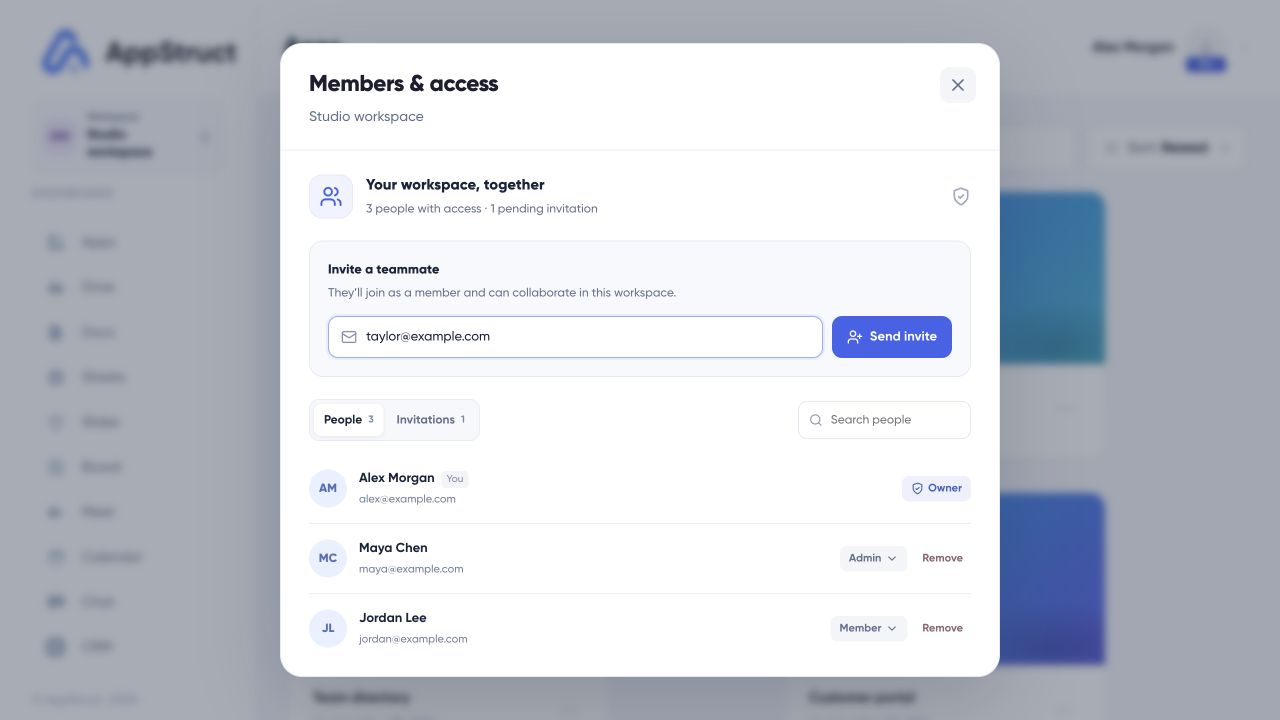
From the workspace switcher, open Members & access. Check the workspace name at the top; owners and admins can manage membership.
Web interface captured on 5 Nov 2026. Workspaces, people, invitations, access grants, and links are fictional examples. No workspace was created, no invitation or access change was sent, and nothing was published.
Leave or remove access
Use the member’s menu to review the relevant action. The confirmation explains whether you are revoking an invitation, removing someone, or leaving the workspace yourself.
Leaving removes your access; it does not move the workspace’s work into your other workspace. CRM API keys have their own lifecycle and must be reviewed in CRM → API & MCP.
Do not create replacement work immediately. Check your connection, sign in again if prompted, and ask the owner to confirm membership if access has changed.