Work with data in Sheets
Build a spreadsheet, organize data, add charts, and share the right view.
Create a spreadsheet
Sheets is the spreadsheet tool in your AppStruct workspace. A spreadsheet can contain multiple sheets, each with its own cells and objects.
- Open Sheets and choose New spreadsheet.
- Rename it so you can recognize it in the library.
- Enter column headings in the first row, then add a few rows of data.
- Select a cell and enter a formula beginning with
=, such as=SUM(B2:B5). - Add or rename sheets using the sheet tabs at the bottom of the editor.
Start with a small, consistent table. Keep each type of information in one column and use the same format throughout it. This makes sorting, filtering, charts, and formulas easier to check.
Follow the interface
Open a workbook, inspect a formula, and create a chart from a selected range.
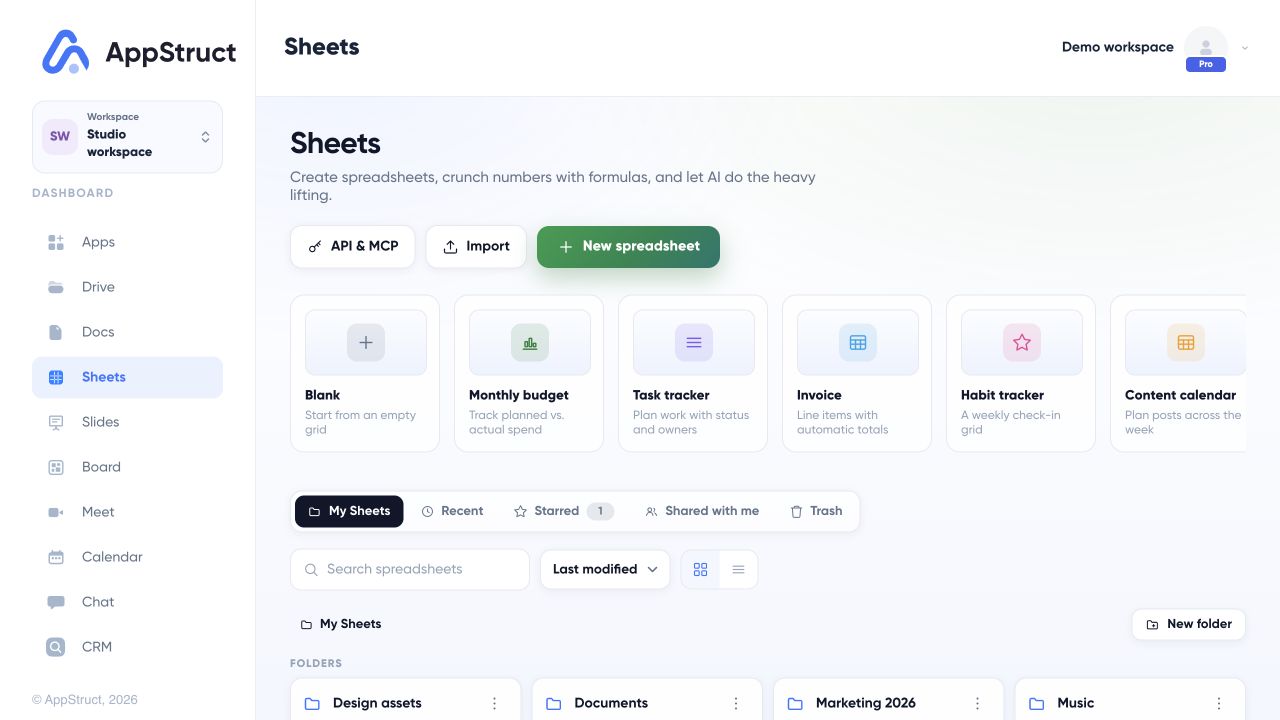
Start in Sheets with a blank spreadsheet or a template. Library views, search, and folders help you return to the right workbook.
Web interface captured on 5 Nov 2026. Workspace names, files, people, and conversations are fictional examples.
Organize and analyze
The menu bar groups commands under File, Edit, View, Insert, Format, Data, Tools, and Help.
| Task | Where to start |
|---|---|
| Keep headings visible | View → Freeze rows or columns |
| Show only matching rows | Data → Create a filter |
| Reuse a filtering setup | Data → Save as filter view |
| Highlight values visually | Format → Conditional formatting |
| Control valid input | Data → Data validation |
| Summarize a data range | Insert → Pivot table |
| Visualize values | Insert → Chart |
| Name a reusable range | Data → Named ranges & functions |
| Limit edits to a range | Data → Protected ranges |
Select the intended cells before running a range-based command. Check the chosen range when sorting or applying formatting so a single column is not accidentally separated from the rest of its table.
Try the example shown above
In a small budget table, put headings in row 3 and four planned values in B4:B7. Select B9 and enter =SUM(B4:B7) to calculate the total. For the example chart, select A3:C7, choose Insert → Chart, and review the range, title, and header options before choosing Insert.
Bring data in and take it out
Choose Import in the library or File → Import inside a spreadsheet. Supported file types include CSV, TSV, text, Excel (.xlsx, .xlsm, .xlsb, .xls), and OpenDocument (.ods). Importing a complex workbook can produce an import report; inspect the notes and check important formulas, charts, and formatting after conversion.
Use File → Download as CSV (.csv) for a simple data exchange, Download as Microsoft Excel (.xlsx) for a workbook, or Download as PDF (.pdf) for a reading copy. The PDF command opens the print flow; choose a PDF destination in the browser to save the reading copy. CSV represents tabular text, so it does not preserve the full workbook's visual features.
Share a working file or publish a reading copy
Open Share to invite people as Viewer, Commenter, or Editor. The General access controls can keep access Restricted or allow Anyone with the link. Read the role description before enabling a link: an Editor link permits edits without signing in.
The separate Publish to the web section creates a public, read-only snapshot. You can publish the workbook's visible sheets, one sheet, a cell range, or one chart. Published formulas become their results. Comments, notes, and protected-range settings are not published; hidden sheets and imported pictures are omitted, and a range publication omits charts.
Check the save status before switching devices. Offline — changes saved here means the current device holds changes that have not reached your account. If a spreadsheet is too large to synchronize, download a copy and reduce it before relying on cross-device access.