Share work with the right people
Understand collaboration roles, restricted links, public copies, and save status.
Choose what you want to share
AppStruct has several sharing surfaces. First decide whether someone needs to work on the original item or read a published copy. A link to an editor and a link to a public reading page do different things.
| Your goal | Start here |
|---|---|
| Invite someone to review or edit a document | Share inside Docs |
| Invite someone to a working spreadsheet | Share inside Sheets |
| Review or edit a presentation together | Share inside Slides |
| Discuss or edit a visual board | Share inside Board |
| Let people read a document without an account | Docs → File → Publish to web… |
| Publish spreadsheet results or a chart | Sheets → Share → Publish to the web |
Invite a collaborator
- Open the item and choose Share.
- Enter the person's email address and choose an access role.
- Read the role description, then confirm the share.
- Give the person the item link. For account-based sharing, they must sign in with the account that received access.
- Reopen Share when you need to change a role or remove access.
For Docs, Slides, and Board, invites grant access to an existing AppStruct account. Typing an email address does not create an account for that person. In Docs, the share dialog can help prepare a note for you to send; do not assume that creating the share sent an email invitation.
Follow the interface
Compare account access in Docs, a viewing link in Sheets, and a separate public reading copy.
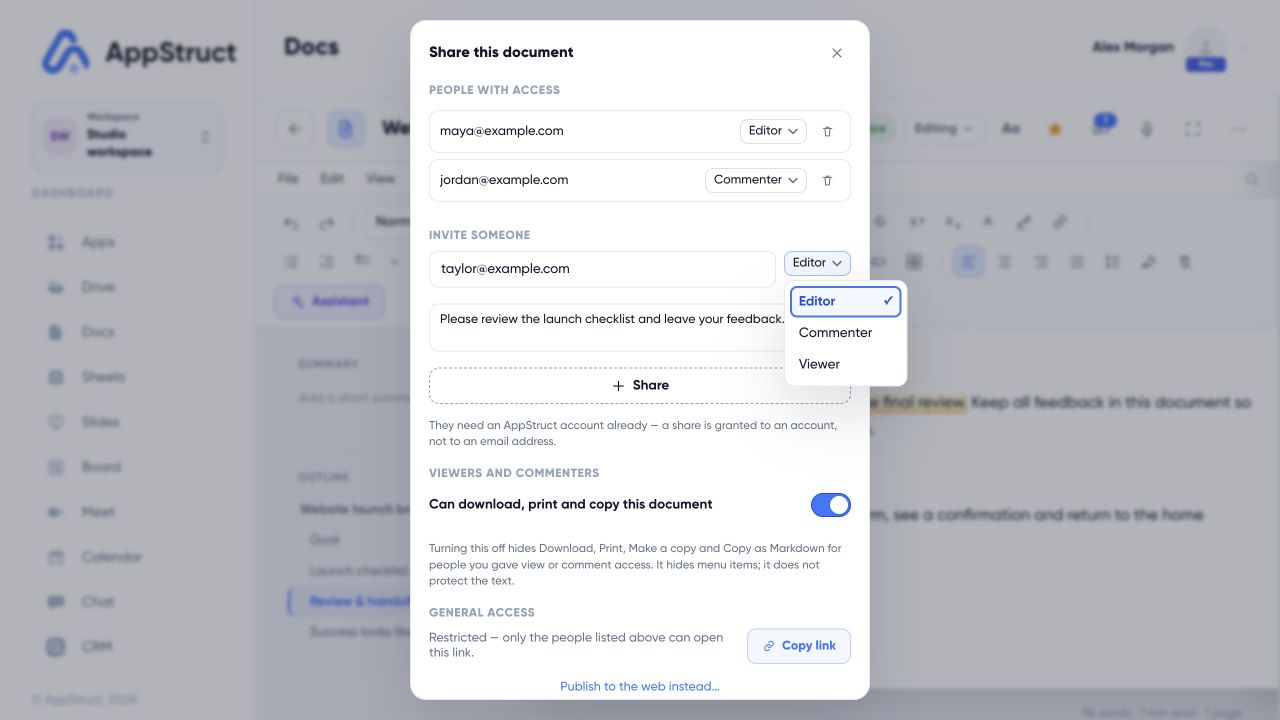
Open a document and choose Share. The owner can manage the access list and grant a role to an existing AppStruct account.
Web interface captured on 5 Nov 2026. Workspaces, people, invitations, access grants, and links are fictional examples. No workspace was created, no invitation or access change was sent, and nothing was published.
Understand access roles
Viewer is for reading. Commenter adds review discussion without ordinary editing of the content. Docs also supports proposed changes through Suggesting mode. Editor permits changes to the shared item.
Giving someone Editor access is different from transferring ownership. In Docs, Slides, and Board, the owner keeps the controls for managing the access list.
An owner can hide download, print, and copy actions from viewers and commenters in Docs and Sheets. These settings control the available product actions; they do not make visible text impossible to copy by other means.
Check the link's access setting
Docs sharing is Restricted: only accounts already granted access can open its editor link. Copying that link is not an additional share.
Sheets has General access controls for Restricted and Anyone with the link. A link can grant Viewer, Commenter, or Editor access. An Editor link allows people with the link to change the spreadsheet without signing in. Use the least permissive role that fits the task and turn link access off when it is no longer needed.
Publish a separate reading copy
Docs and Sheets support public read-only pages. A published copy is distinct from collaboration on the original item. Review its content before distributing the link, and use the publishing controls to update it or stop publishing.
For Sheets, the chosen publishing scope matters: a workbook, sheet, range, and chart expose different content. Formulas are published as results, while comments, notes, and protected-range settings are excluded.
Confirm saving before handing work over
If an editor reports Offline, On this device, or a similar local-only status, the current device may hold changes the recipient cannot yet see. Reconnect and wait for synchronization, or export a reading copy for the handoff. Do not clear browser data while work is only saved on that device.