Think visually on a Board
Map ideas, organize a workshop, and turn an open canvas into a useful shared view.
Create a board
Board is the visual canvas in your AppStruct workspace. Use it for a brainstorm, retrospective, process diagram, mind map, or a collection of related ideas.
- Open Board in the workspace navigation.
- Choose New board for an empty canvas, or open Templates.
- Pick Blank board, Brainstorm, Retro, Flowchart, or Mind map.
- Rename the board to describe the session or problem.
- Add a few notes and use frames to separate the areas of your work.
A template creates editable content on the canvas. Change its prompts and labels to suit the actual task instead of treating the template as a finished result.
Follow the interface
Open a board, group related notes on the canvas, and find version and export controls.
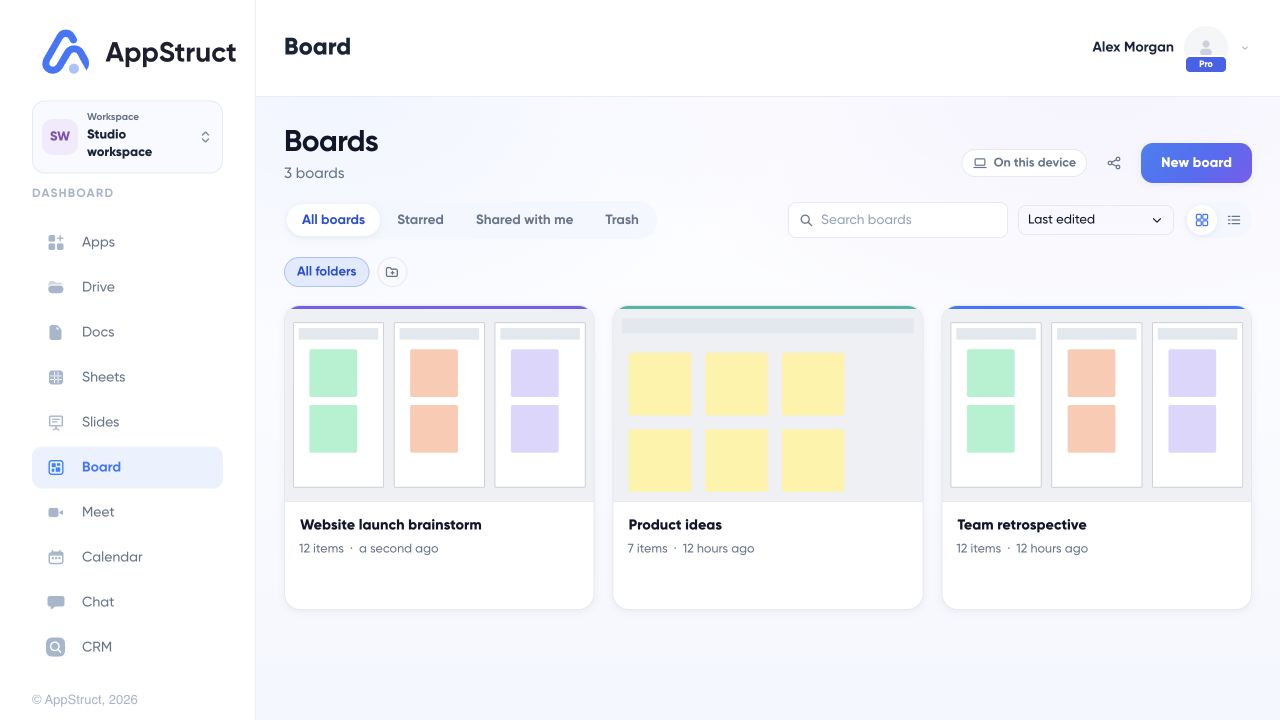
The Boards library shows previews of existing canvases. Open a board to continue working or create a new one.
Web interface captured on 5 Nov 2026. The workspace, board names and notes are fictional examples.
Build a readable canvas
Add sticky notes, text, shapes, connectors, cards, or other available canvas objects. Select an object to edit its text and appearance. Select several objects when you want to align, group, move, or resize them together.
Frames help divide a large canvas into sections. For example, a retrospective can have one frame each for observations, decisions, and actions. Put a short title on every frame so other people can understand the board without an explanation from its author.
Use View → Zoom to fit to find the full canvas again, or Zoom to selection to focus on a group of objects. Minimap, Layers, Frames, Grid, Smart guides, and snapping controls help navigate and arrange a larger board. These views organize the editor; they do not add extra content to an export by themselves.
Review and collaborate
Open Share to grant another AppStruct account Viewer, Commenter, or Editor access. A viewer can read the board, a commenter can discuss it without changing the canvas, and an editor can update the shared board. The owner manages the people who have access.
Use comments to attach discussion to the relevant part of the canvas. A comment is more useful when it asks a specific question or records a decision rather than duplicating a sticky note.
Save a checkpoint
Use File → Save a version before a workshop or a substantial reorganization. Version history lets you inspect and restore earlier saved versions. A named version is a useful checkpoint; it does not replace checking whether your latest changes have synchronized.
The save badge tells you where the work is:
| Status | Meaning |
|---|---|
| Saved | Changes are on your account. |
| Saving | Changes are being sent to your account. |
| Offline | Changes are saved here and will upload after reconnection. |
| On this device | The board is saved in this browser. |
| Not saved | Browser storage could not save the board; export before closing. |
Present or export
Use Present to walk through frames, or Present from this frame to begin at a particular section. For a file you can send elsewhere, use PNG, JPEG, PDF, or SVG export. The available commands include exporting the selection or a frame as PNG, and exporting notes as CSV.
Choose the smallest useful scope for a large board. Very large image exports may use a reduced scale to fit the browser's limits.