Meet in your browser
Start a video meeting, invite people, or join with a meeting code and check your devices before entering.
Start a meeting
- Open Meet from the workspace navigation.
- Select New meeting and wait for the meeting to be created.
- Check your camera and microphone on the pre-join screen. You can join with both off.
- Choose Join now when you are ready.
- Use Invite people to copy the meeting link or code for your guests.
Follow the interface
Create a meeting or use an invite, check the prejoin settings, then find the meeting controls.
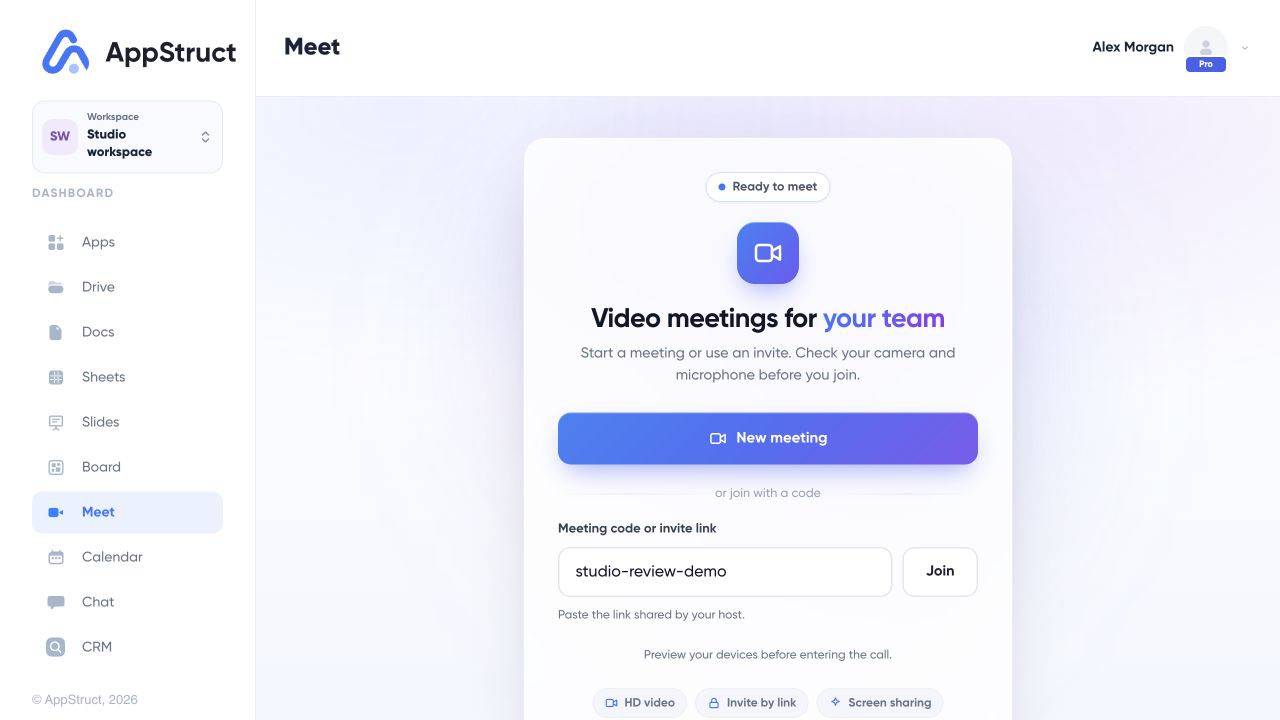
Open Meet in your workspace. Choose New meeting to create a meeting, or enter the code or link supplied by the host.
Web interface captured on 5 Nov 2026. The workspace and participants are fictional. The conference is simulated with all cameras and microphones off; no live call was connected and no invitations were sent.
Join an existing meeting
Paste a meeting code or an AppStruct invite link into Meeting code or invite link, then choose Join. Opening a link with a meeting code pre-fills the field.
A meeting started in a Chat channel may require you to join from that channel. Open the conversation and use Join the call if Meet directs you there.
During the call
The call controls let you manage your microphone and camera, share your screen, and leave the meeting. Browser support and permissions determine which devices and screen-sharing choices are available.
When the browser asks for camera or microphone permission, choose the permissions you want for that call. If a device cannot start, check the browser’s permission settings and try that control again. You can continue with camera and microphone off while resolving it.
If you cannot join
| Message or problem | What to check |
|---|---|
| Meeting not found or ended | Ask the host for a current link or code. |
| Access required | Confirm that you are signed in with the intended account and ask the host for access. |
| Join from a channel | Open that Chat channel rather than pasting its code into a different meeting flow. |
| Meeting server unavailable | Check your connection and use Try again. |