Calendar & booking links
Offer bookable times, define your availability, and manage scheduled meetings.
Calendar lets people book time through your public booking page. Event types define what can be booked; Availability defines when you are free; Scheduled shows booked meetings.
Create a bookable event
- Open Calendar and choose New event type in the Event types view.
- Set the event’s name and Duration. Use Custom for another whole number of minutes.
- Choose the location and add the location details requested by the form. Add a description so invitees know what to expect.
- Set Buffer before, Buffer after, Minimum notice, and the Bookable window to leave enough time around meetings.
- Choose an availability schedule if more than one exists. Save the event type with Active enabled when it is ready to accept bookings.
Follow the interface
Define an event, set your available hours, and find scheduled meetings.
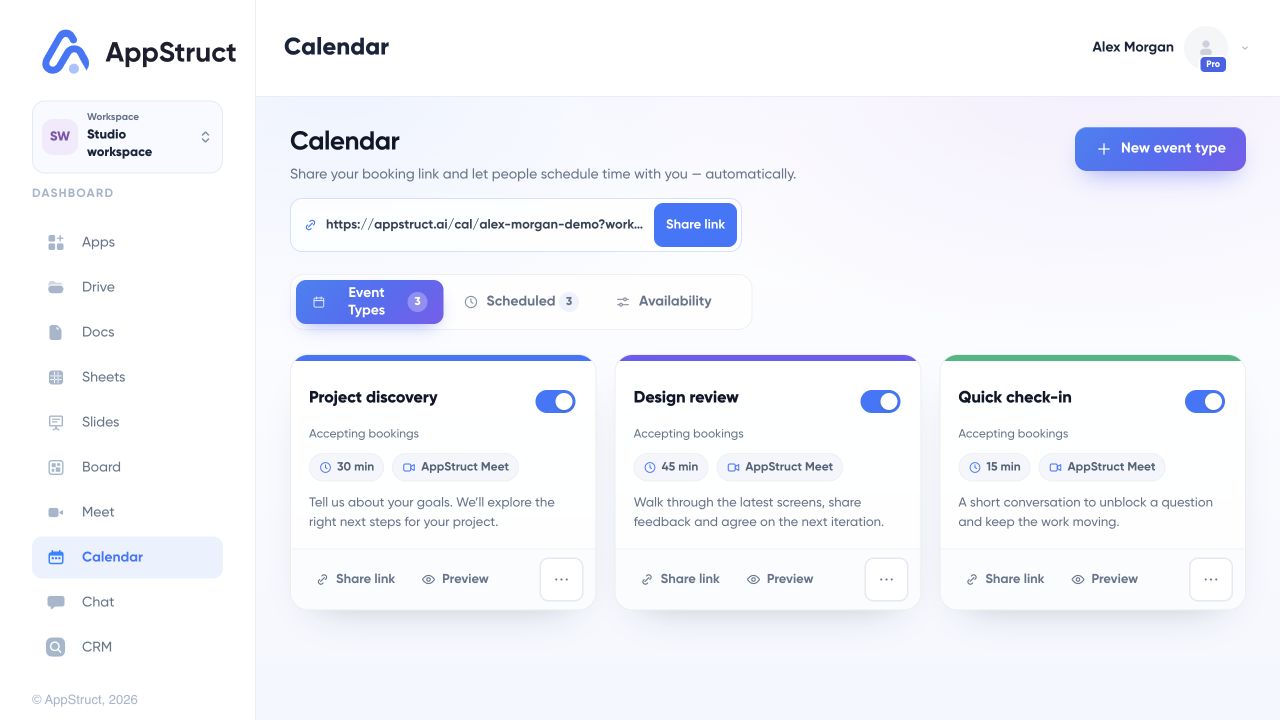
Event types define what people can book. The sample Project discovery event is 30 minutes long and uses AppStruct Meet.
Web interface captured on 5 Nov 2026. Files, people, connections, appointments, and report data are fictional examples.
Set your availability
Open Availability. Choose the time zone and working days for the schedule, then add start/end ranges for each day. You can add another range, remove a range, or copy one day’s hours to other days.
Check your time zone before sharing a link. An event type that is inactive or has no available time in its booking window cannot offer a usable slot.
Share a booking link
Use Share link at the top of Calendar for your booking page. Use an event type’s sharing options to point people at that event. Wait until the booking link is ready before copying it.
Your public page uses an address such as appstruct.ai/cal/your-name. Invitees choose an event type, date, time, and their details in the booking flow.
Review booked meetings
Open Scheduled, use the meeting filters, and select a booking to inspect it. The meeting controls include adding it to your calendar and cancelling it. Use the meeting-management link supplied to an invitee for rescheduling or cancellation.
The Google Calendar integration provides connection and synchronization controls. Review its connection state before relying on external busy times.