Create and present in Slides
Turn an outline into a presentation, refine its design, and export or present it.
Start a presentation
Slides is the presentation tool in your AppStruct workspace. Use it to combine text, images, charts, and other objects into a sequence you can present or download.
- Open Slides in the workspace navigation.
- Choose New deck, or start with Blank presentation from the library.
- Give the presentation a recognizable title.
- Add a title and a short message to the first slide.
- Add more slides and arrange their order in the filmstrip.
A blank presentation opens with an editable title slide. Build the story before adding detail: one main message per slide is easier to present and easier for a teammate to review.
Follow the interface
Start a presentation, arrange its slides, and choose the right export format.
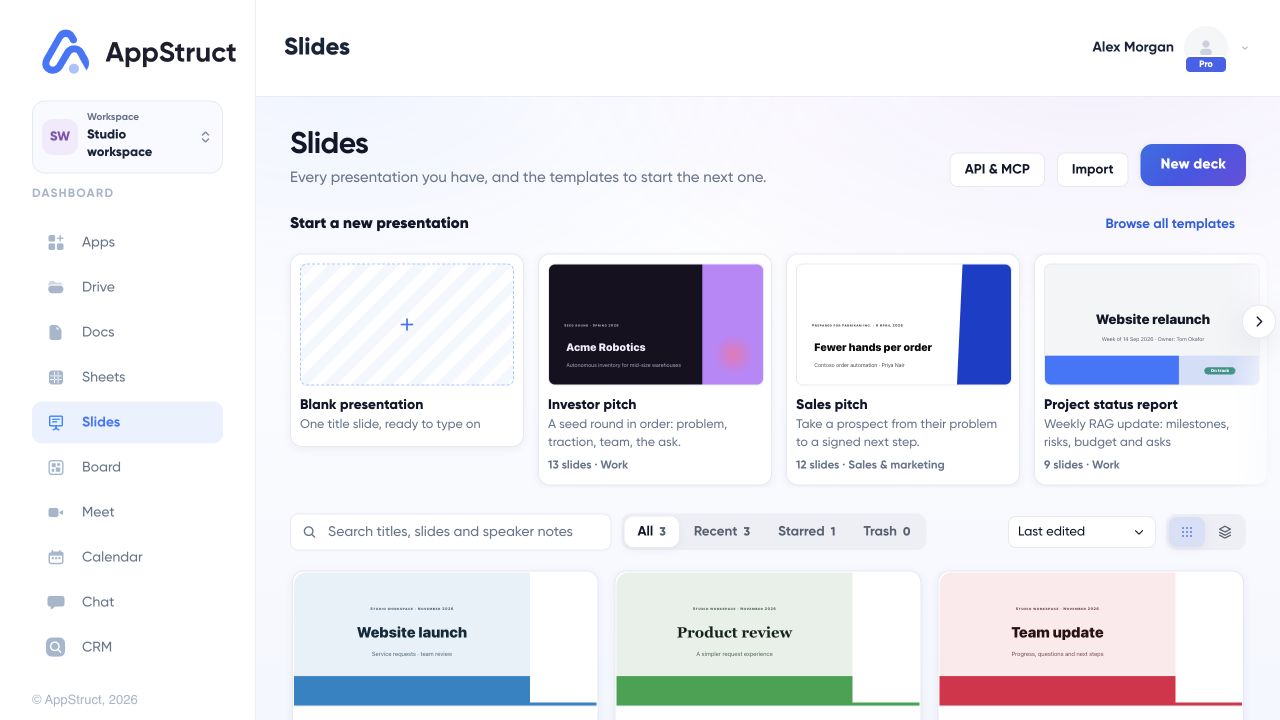
Use New deck or Blank presentation to start. The example Website launch deck contains five editable slides.
Web interface captured on 5 Nov 2026. Files, people, connections, appointments, and report data are fictional examples.
Add and arrange content
Use Insert for text boxes, images, tables, charts, and video. Select an object to change its formatting and position. Arrange contains alignment, distribution, grouping, ordering, rotation, and size commands.
Use the theme controls for a consistent palette and type treatment across the presentation. Add speaker notes for information you want to say rather than place on a slide. The notes pane is separate from the visible slide content.
When reusing slides, choose Import slides and select a presentation from your library or upload a PowerPoint file. Pick the slides you need. Match this deck uses the destination's theme; Keep the original look preserves the source's colors in the imported copies.
Import PowerPoint
The library's Import action accepts a .pptx file. You can also import selected slides from a .pptx while editing another presentation.
Review the import notes before treating the result as final. Conversion can omit or simplify features that do not have a matching representation in Slides. Compare important layouts, images, charts, and text with the source presentation.
Present with confidence
Use Present from the beginning or Present from this slide to start the slideshow. Presenter view opens a separate window for your notes and presentation controls while the slide show runs in the original window.
If the browser blocks the second window, the slideshow still opens and shows guidance. Allow the presenter window when you want the two-window setup. Keep a downloaded copy for a presentation you need to deliver without depending on the current browser session.
Download and share
Choose Download… to export a PDF, PowerPoint (.pptx), slide images, or an outline. Image export supports PNG, JPEG, and SVG, with a choice of all slides or the current slide. Outlines can be Markdown or plain text. The export dialog shows any notes about features that could not be represented in the chosen format.
Share grants an existing AppStruct account Viewer, Commenter, or Editor access. Viewers can open and present; commenters can review; editors can change the presentation. The owner can change or remove access from the same dialog.
If sharing says the presentation is stored on this device only, account sharing is unavailable in that session. Continue editing locally, keep an exported copy, and reconnect before expecting the presentation to appear on another device.